Software Defined Radio Assignment - Exploring the RF Spectrum with RTL-SDR and Gqrx

Prepared by Dr. Aaron Scher
[email protected]
Oregon Institute of Technology

Back to Aaron's home page.


Equipment and software

For this assignment you will need a few pieces of equipment and some free software:


Getting started

  1. Connect both the bootable USB flash drive and RTL-SDR stick to your computer.
  2. Restart your computer and boot Ubuntu from the USB drive. For many PC's this involves pressing F12 when you first turn it on (for my Acer laptop, I press F12 when I fist see the Acer logo after a restart). For Mac this generally involves restarting the computer and pressing the option key upon hearing the startup chime. If you are having trouble booting from the USB, you may need to change your BIOS settings. If using a lab computer at school, after you are finished working in Ubuntu, please remember to restart the computer in Windows before leaving.
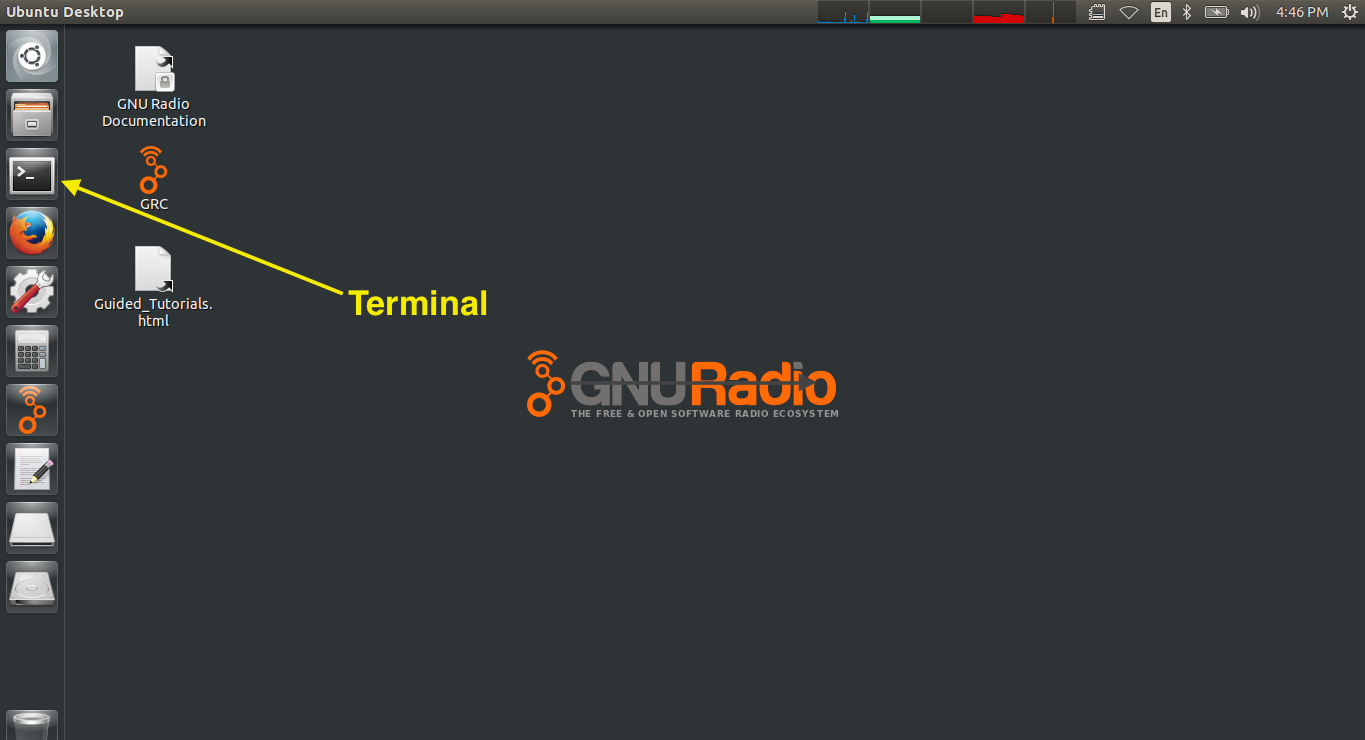
  3. In Ubuntu, click on the terminal icon, which is located on the left menu bar as indicated in the figure blow.
    pic
  4. In the terminal screen, type "gqrx" and press enter. Gqrx is the "software" part of the software defined radio receiver.
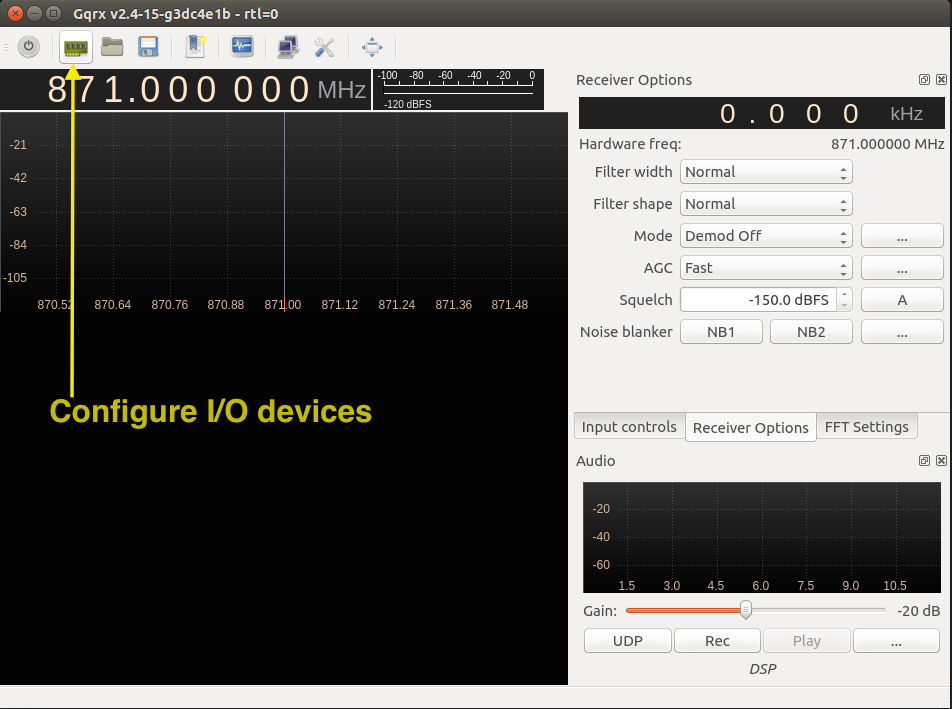
  5. Once Gqrx has opened, click on the "Congiure I/O devices" icon, which is the second icon on the left at the top as indicated in the figure below.
    pic
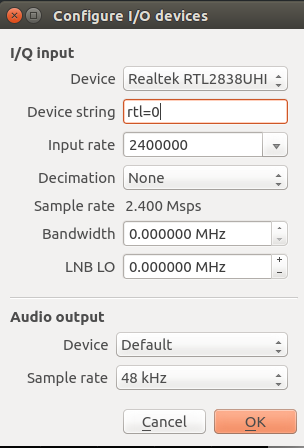
  6. In the menu screen, set Device to be Realtek RTL (there may be some numbers and letters after the name). Set the input rate to be 2400000 (2.4 Msps). This sets the sample rate to 2.4 Msps and frequency bandwidth to 2.4 MHz. This will give you a 2.4 MHz window in which to view the spectrum. Leave the rest of the options to their default values, as shown in the figure below. Now press OK.
    pic
  7. If you are familiar with the Nyquist sampling theorem, you may think "Wait a minute! Shouldn't the bandwidth be half the sampling rate to avoid aliasing (i.e. if the sample rate is 2.4 Msps, shouldn't the bandwidth be 1.2 MHz?) You are correct to think this for sampling ordinary real signals, such as when sampling audio signals with a sound card. However, the RTL-SDR stick performs quadrature frequency downconversion before sampling two quadrature baseband signals. This effectively doubles the bandwidth compared to sampling an ordinary real signal. For more information on this topic, check out the discussion on complex (I/Q) mixing in this link: M. Valkama, Complex valued signals and systems - Basic principles and applications to radio communications and radio signal processing, Tampere University of Technology, Presentation.
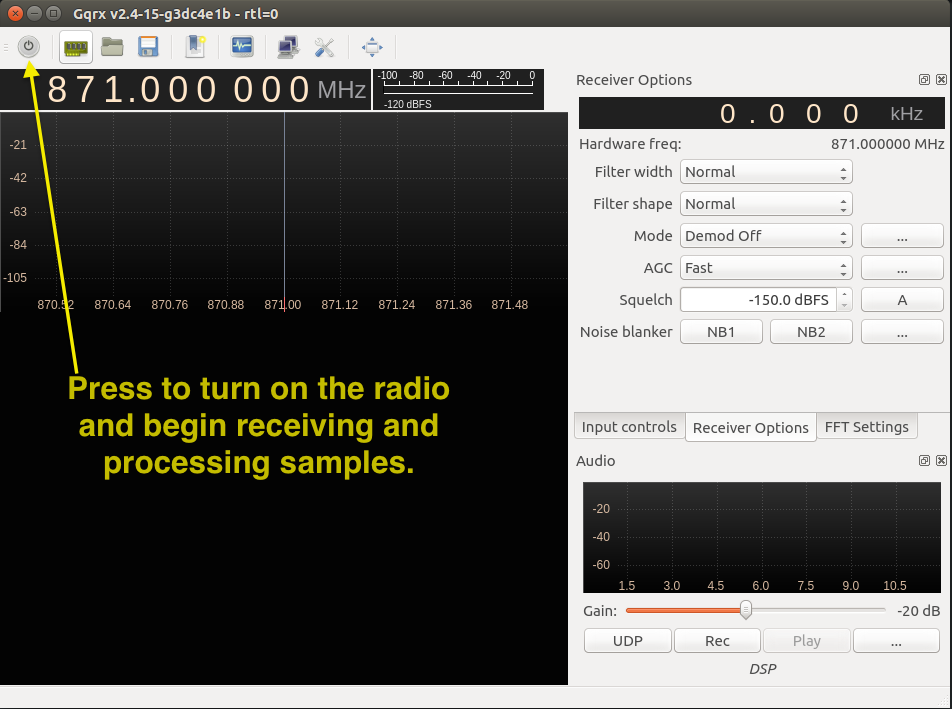
  8. Click on the the light-grey circular power icon (as indicated in the figure below) to turn on the radio.
    pic
  9. Tune the center frequency to a known radio FM radio station. A list of radio stations in the Portland, OR area can be found via radio-locator.com here: List of FM and AM radio stations in and near Portland, OR. To tune the received frequency move the mouse pointer on any of the frequency digits and use the mouse wheel to change it. Alternatively, you can move the pointer and click on the upper or lower part of any digit or use the Up/Down key to change it. You can also move the mouse pointer over a digit and manually type in the digit with your keyboard.
    pic
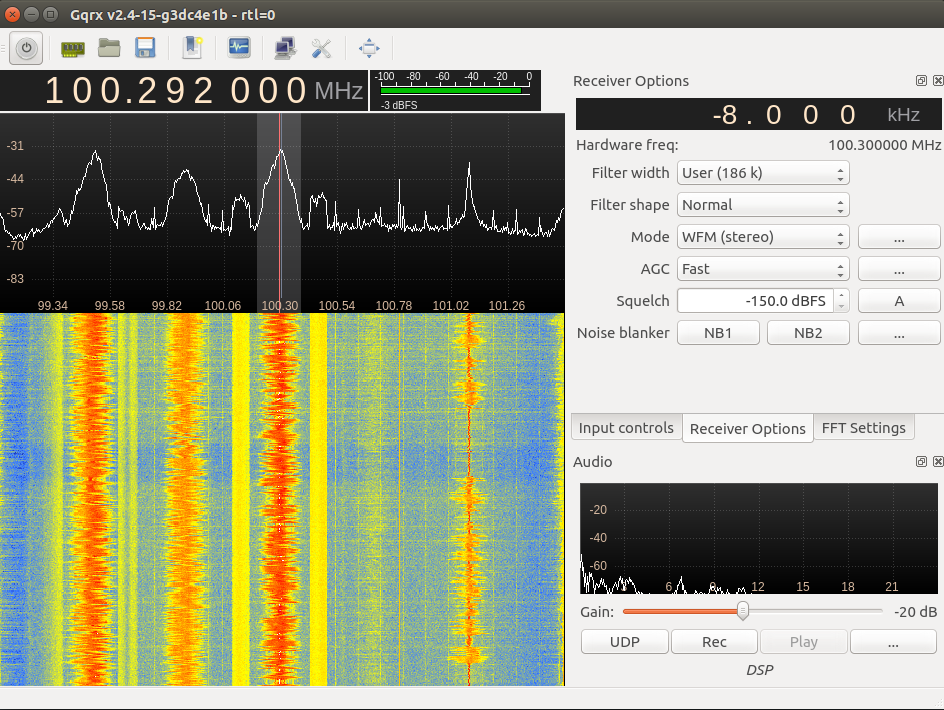
  10. Click on the "Receiver Options" tab in the upper right window. Choose the mode to be "WFM (stereo)". The RF spectrum frame (top panel in the Gqrx window) displays the real-time spectrum. Move the grey band so that it is centered right on a radio station like that shown in the picture below. This grey band represents the width of the receiver filter. Resize the bandwidth so that it includes the entire bandwidth of the radio station: To do this hover the mouse over the edge of the grey band and click and drag to resize, like that in the figure below. If you are following along, you should now be listening to 100.3 KKRZ FM! For the screenshot below, the frequency spectrum is centered at exactly 100.292 MHz. You can pan and zoom around the spectrum plot by panning, clicking, and scrolling with the mouse (experiment!). Below the RF spectrum frame is the waterfall frame displaying the colorful waterfall plot. The waterfall plot gives the spectrum history.
    pic
  11. Become familiar and experiment with the different options and windows in Gqrx. Please read more about the Input controls, receiver options, squelch, and FFT settings in GQRX: Practical Tips and Tricks. You can also find other good tutorials online for Gqrx.

Assignment

For this assignment you are to explore the RF spectrum. You will be creating a PowerPoint Presentation, saving it as a PDF, and uploading it to Blackboard. You may also be asked to present in class (if so, please see the Blackboard for more details). Here are the guidelines: